Training
Short version of the training manual. Full manual (PDF)
1. About & golden rules
Keep one webphone tab open and your status button green. Do not use DND. Change one campaign setting at a time, then check the Change Log. Test with a test number before dialing a new list.
2. Logging in to the portal
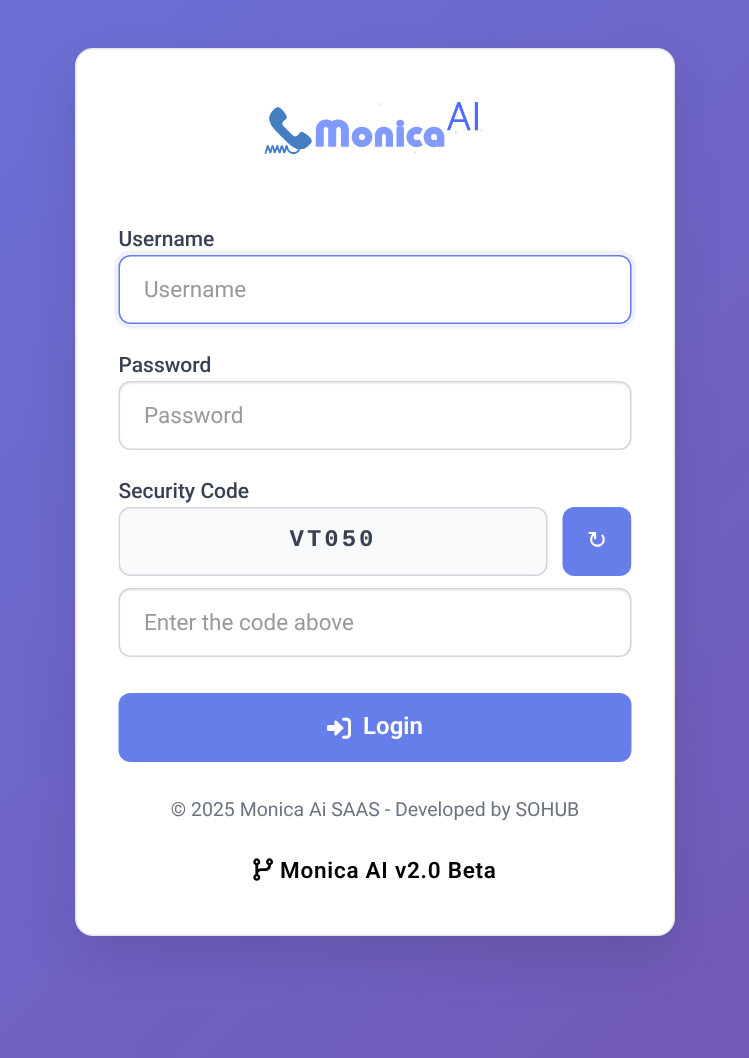
Open the portal address in Chrome or Edge, enter Username and Password, type the 5-character Security Code, click Login. If you are sent back to login, your session ended; log in again.
3. The agent webphone
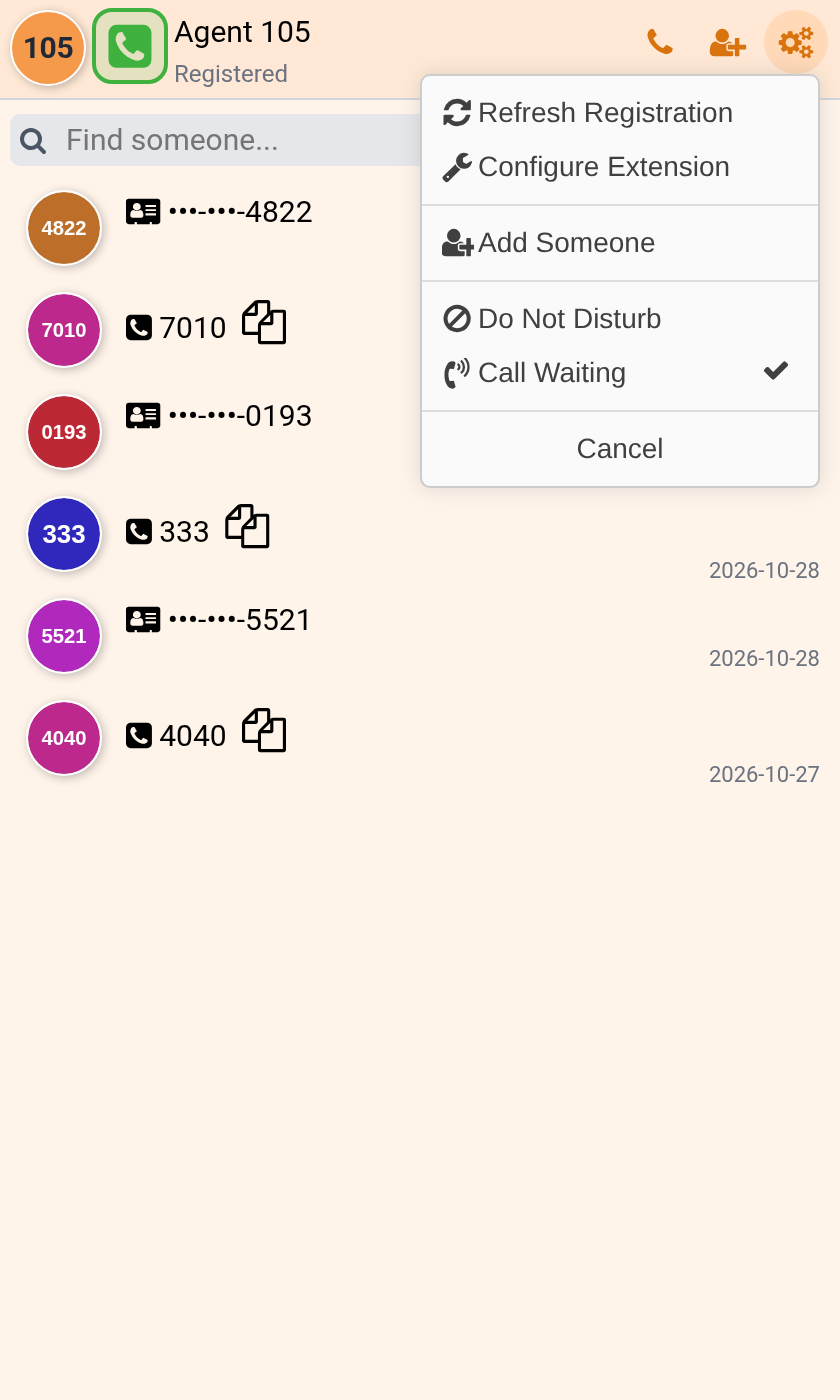
Register at shift start (green), unregister at the end (red). Grey = reconnecting, wait 5–10 s. Burnt orange = DND on: open the gear menu and untick Do Not Disturb.
4. During a call
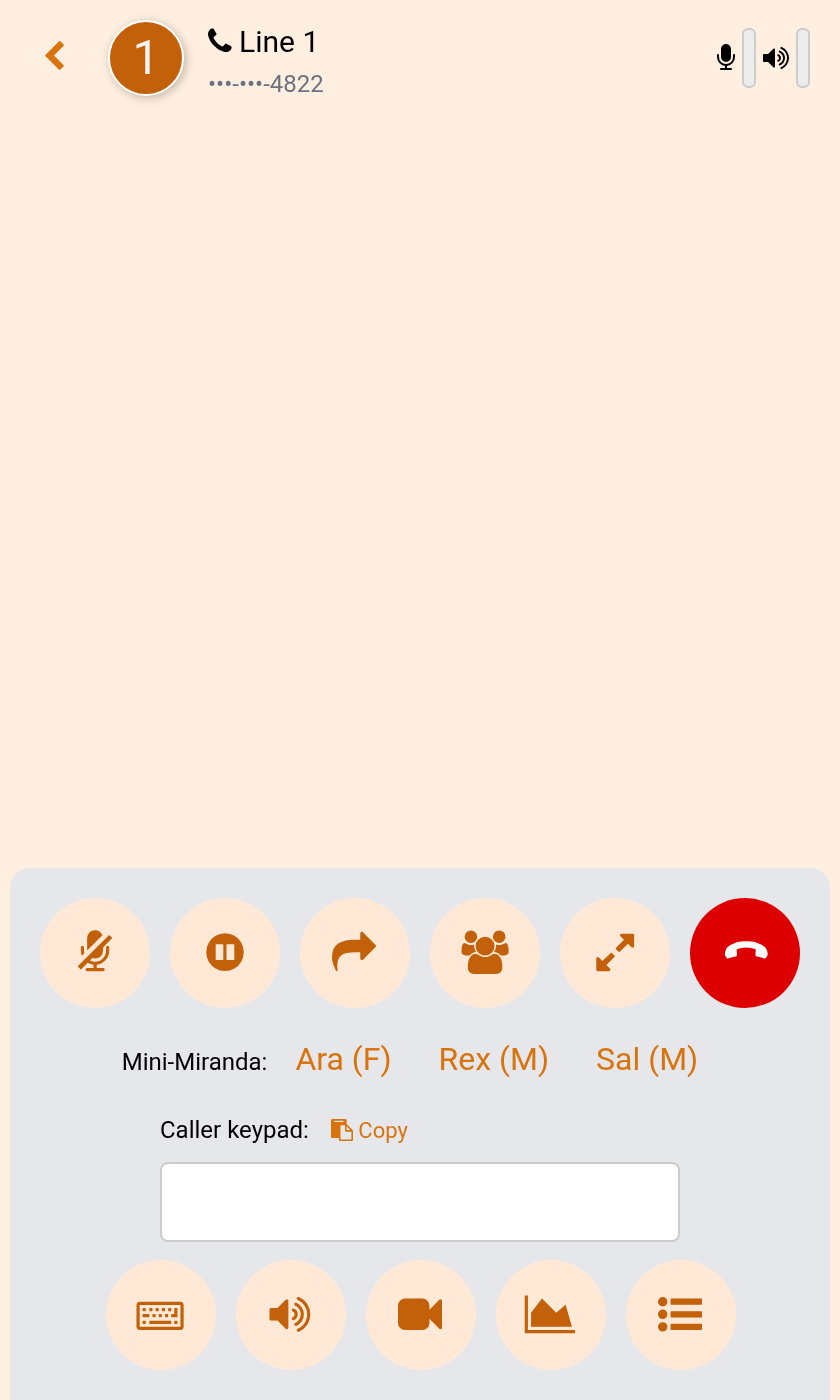
Use the in-call controls to mute, hold or transfer. Transfer callers to queue 4040 when needed.
5. Campaign Management
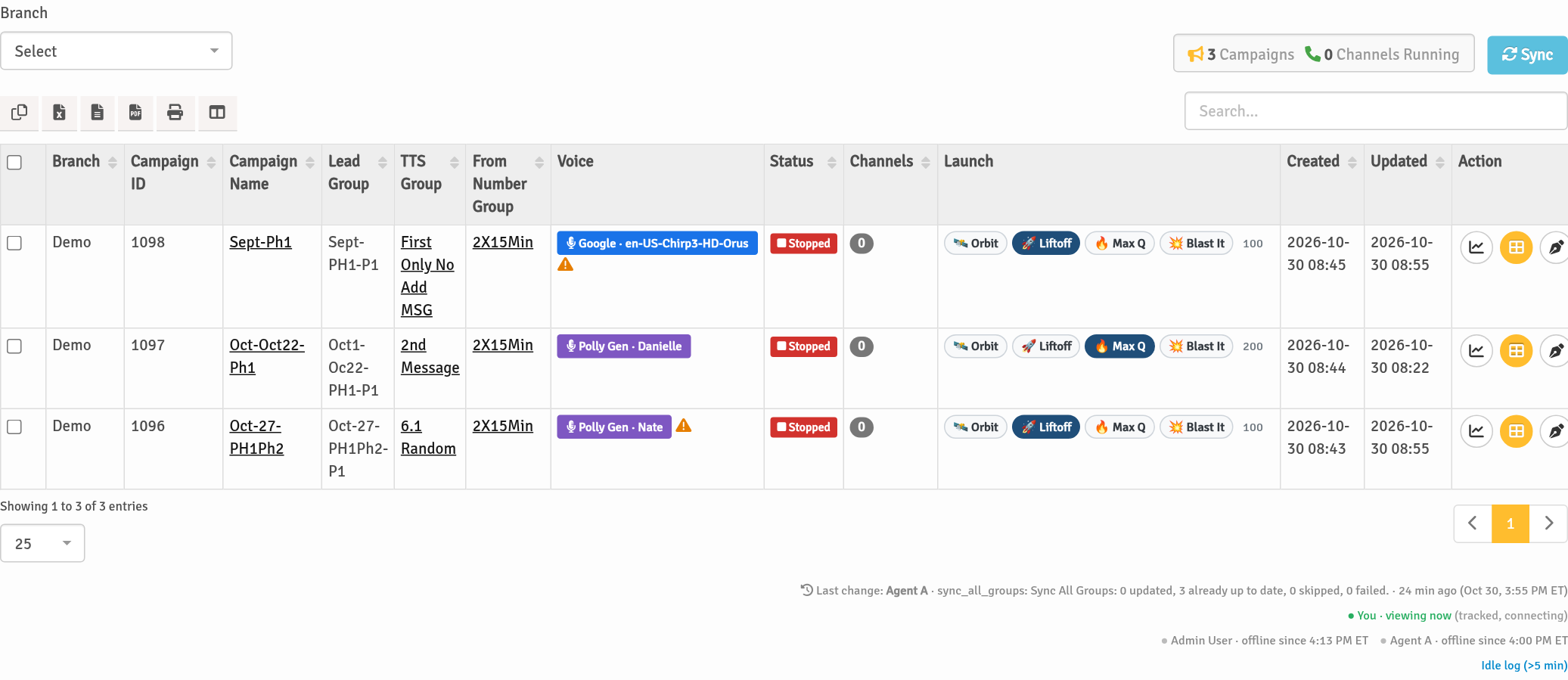
The campaign table lets you start, pause and stop campaigns, set channels with launch presets, review the Change Log and Caller ID Health.
6. Queue 4040 agent panel
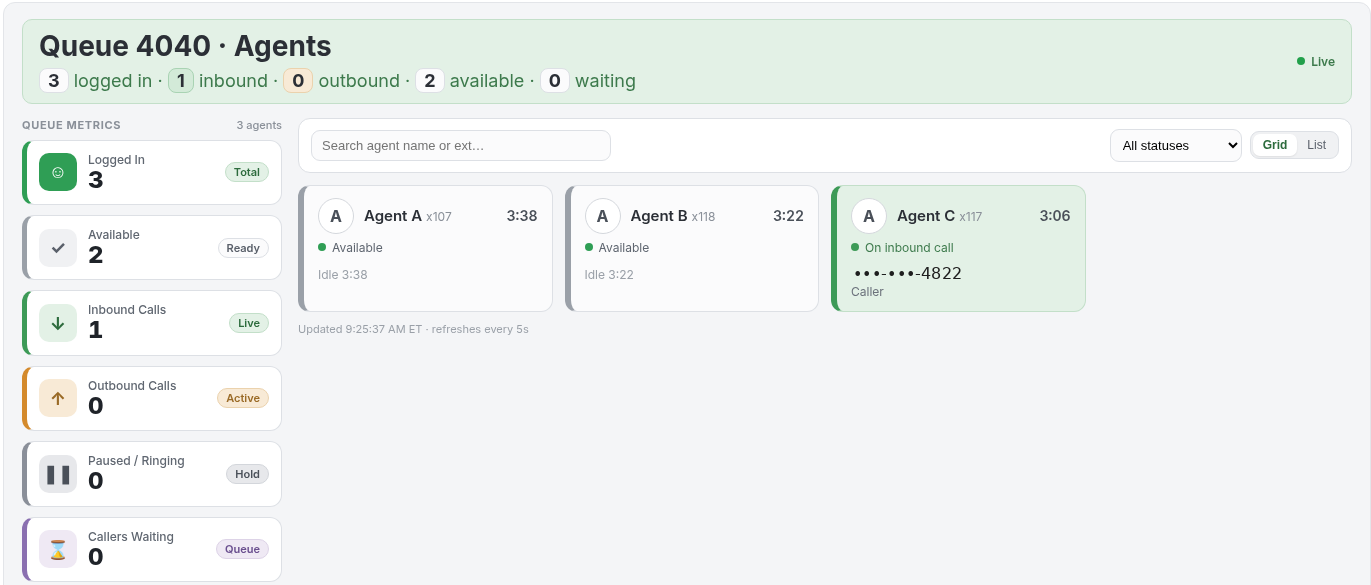
Header counts and a metrics sidebar (Logged In, Available, Inbound, Outbound, Paused/Ringing, Callers Waiting), color-coded agent cards, search, status filter, Grid / List views.
7. Creating a campaign
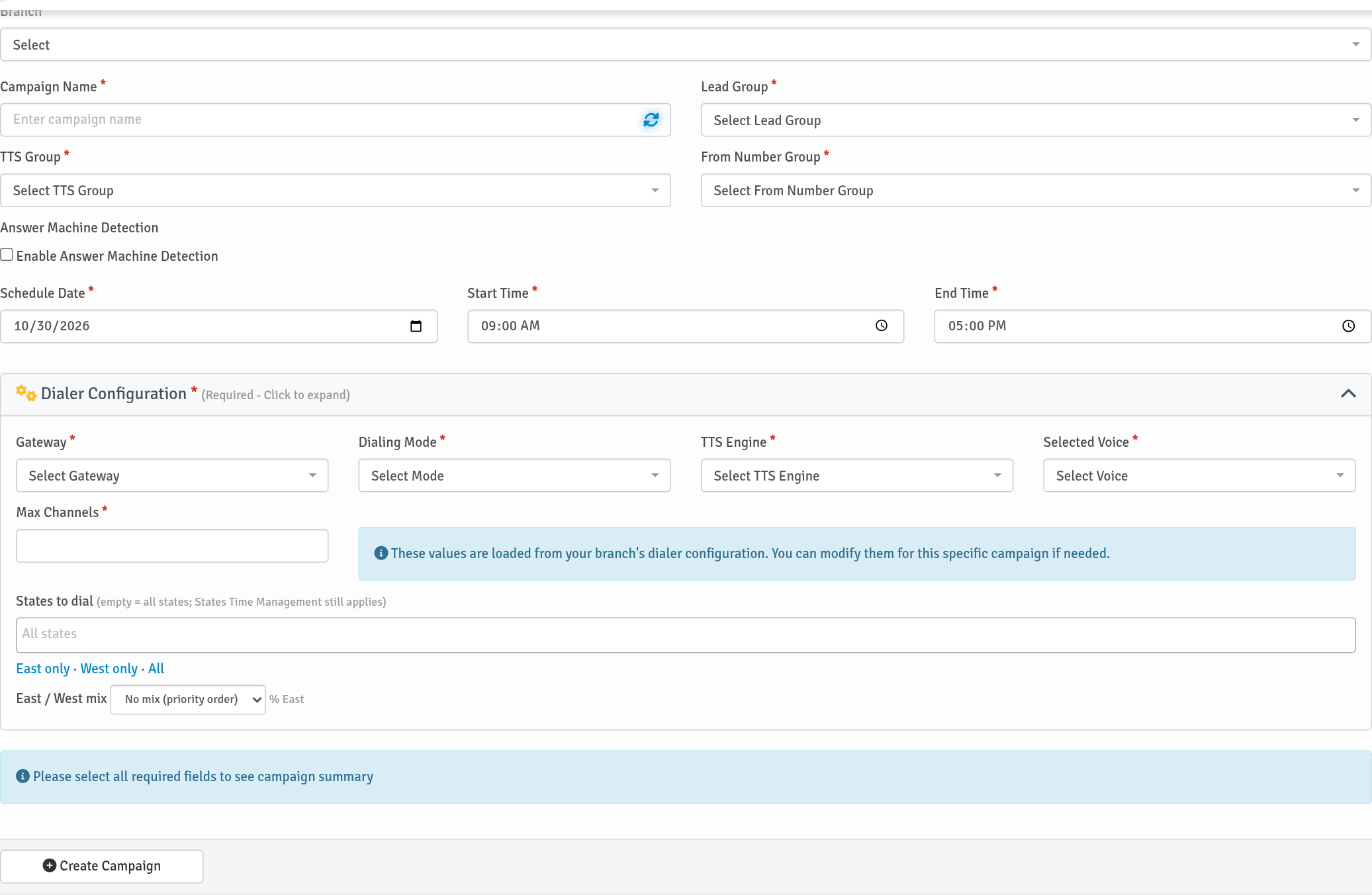
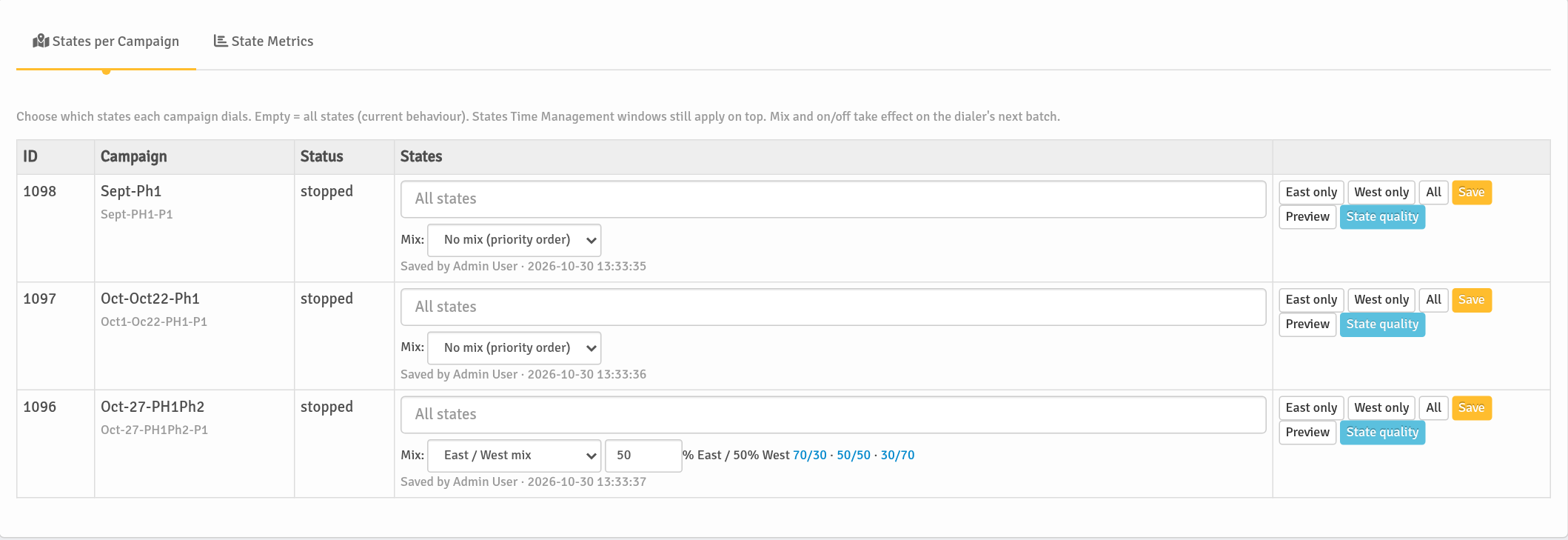
Campaign Management → Add Campaign: name, Lead Group, TTS Group, From Number Group, schedule, Dialer Configuration (gateway, mode, voice, max channels), optional states and East/West mix, then Create Campaign. New campaigns start stopped; run a test call first.
8. Editing a campaign
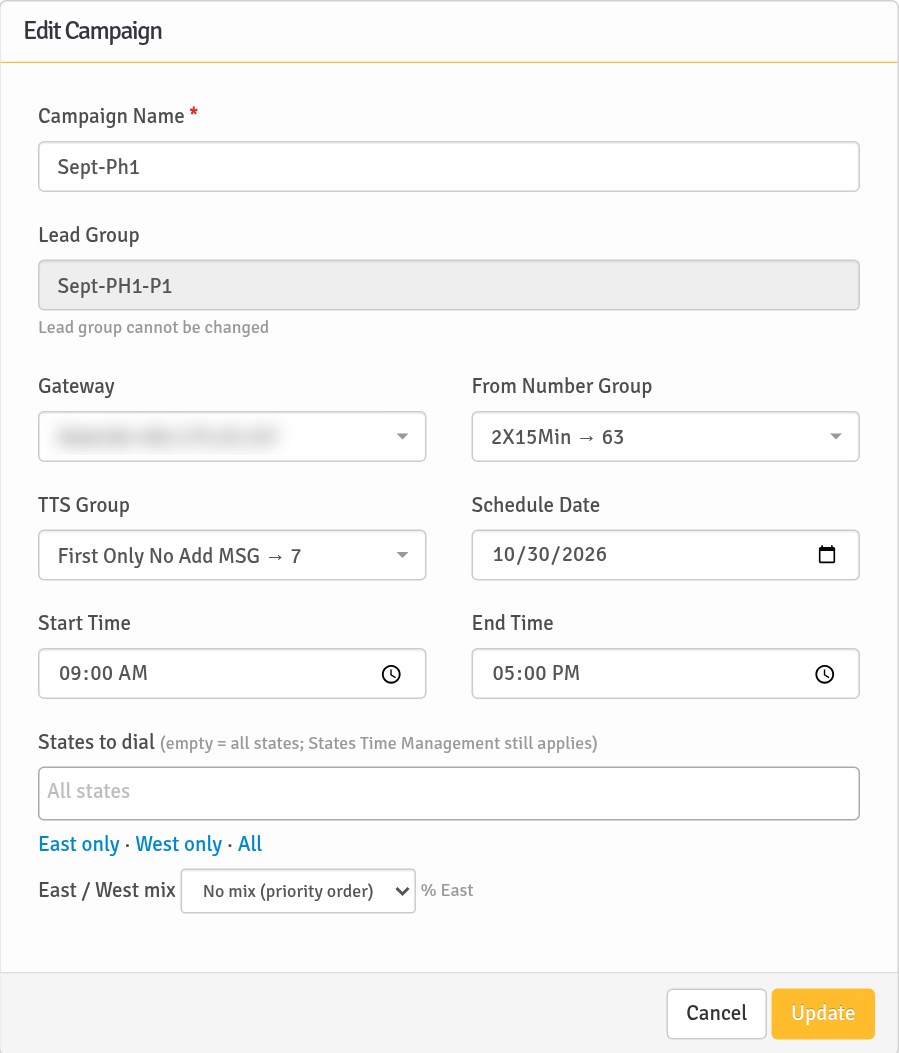
Click ✎ Edit, change settings, click Update. The Lead Group cannot be changed. If you changed TTS or caller ID groups on a running campaign, press Sync.
9. States and the East/West mix
Pick states (or East only / West only / All). West = AK, AZ, CA, CO, HI, ID, KS, MT, ND, NE, NM, NV, OK, OR, SD, TX, UT, WA, WY; East = all others. A mix sets the East share of each batch and never dials the same lead twice. State calling hours still apply; leads with missing or misspelled states are skipped.
10. State quality
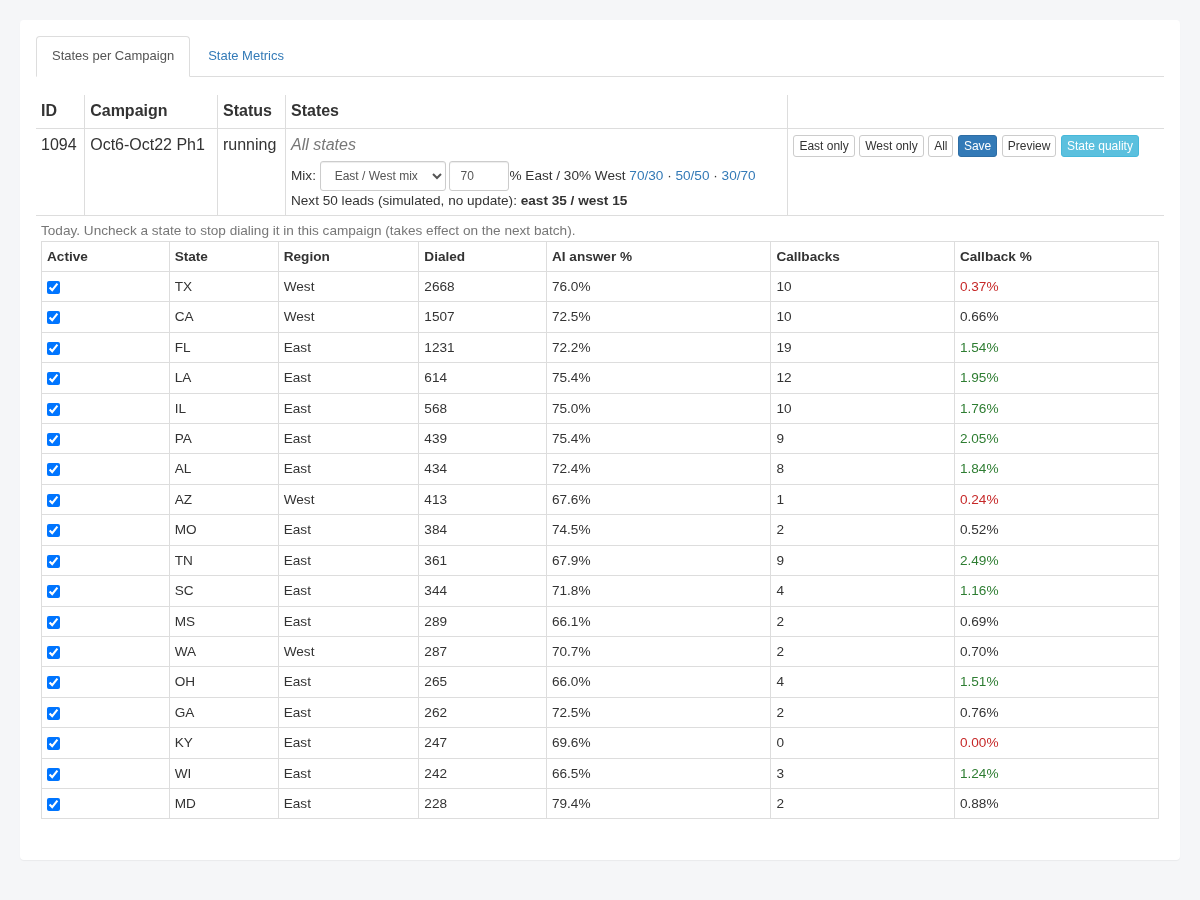
See dialed counts, AI answer %, callbacks and pending leads per state; untick a state to stop dialing it on the next batch.
11. Importing leads
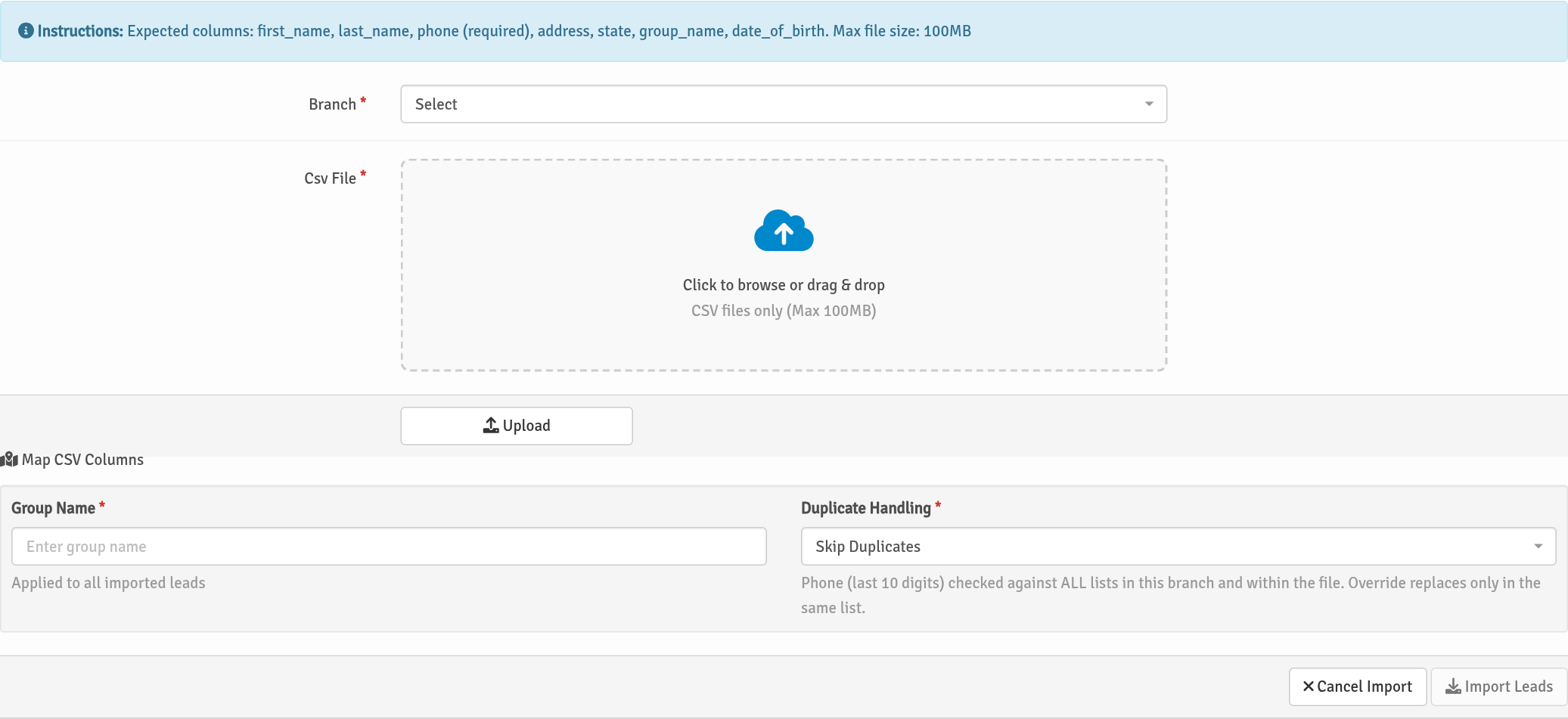
CSV up to 100 MB with first_name, last_name, phone (required), address, state, group_name, date_of_birth. One group per file, 2-letter state codes. Lead Management → Import Leads → map columns → Group Name → Skip Duplicates → Import. Duplicates are matched on the last 10 digits of the phone across every list.
12. The Sync button
After changing a TTS group or caller ID group, press Sync so running campaigns pick up the change.
13. Caller ID number groups
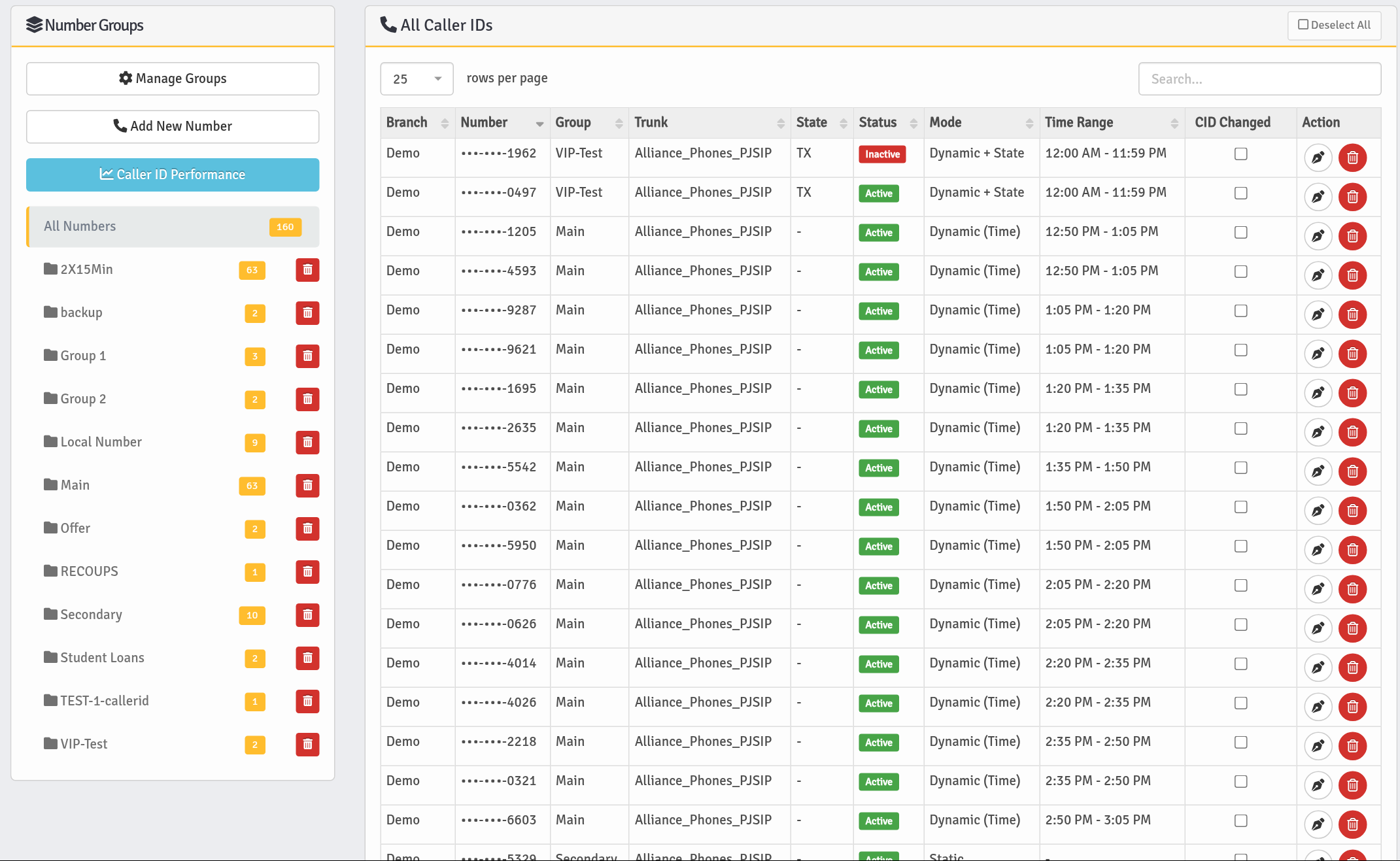
Add caller ID numbers, manage groups, watch CID Changed flags and the Caller ID Performance report.
14. Idle detection
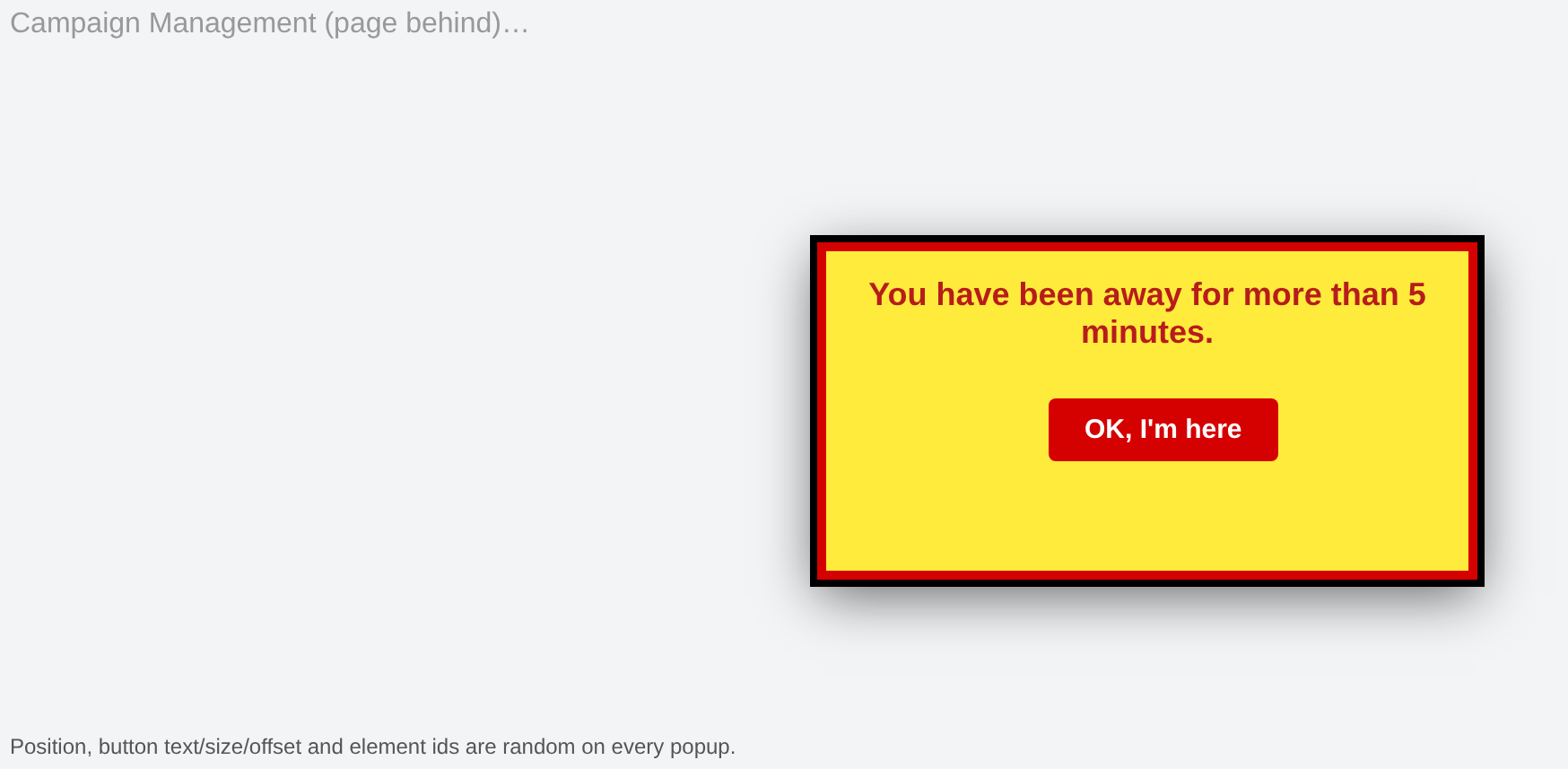
Your status line shows your presence; after 5 minutes idle a popup asks if you are still there. Admins see the Idle log.
15. Making a test call
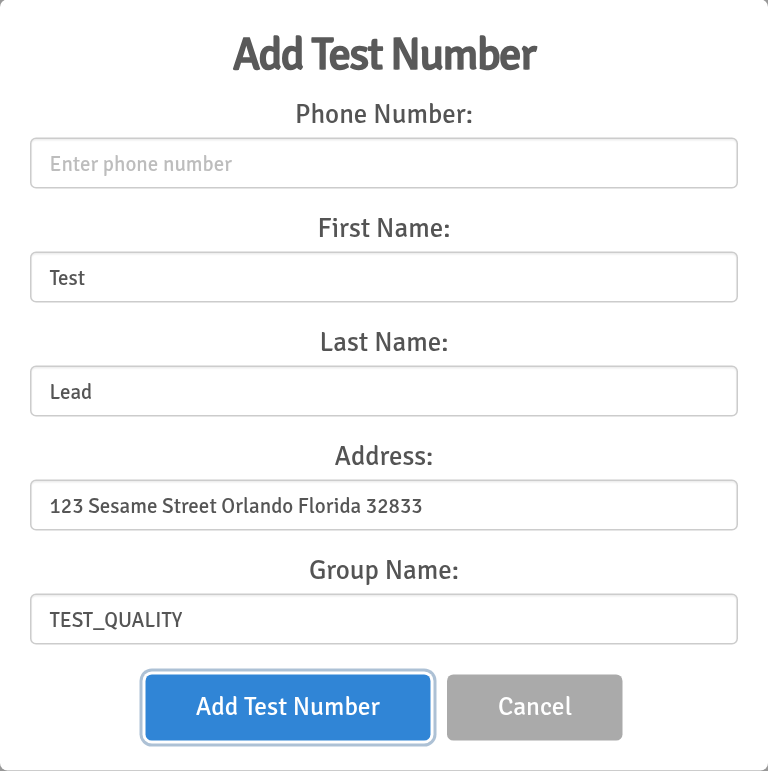
Add your test number and place a test call before dialing any new list.