Webphone setup guide
The webphone is a web page that turns your browser into a phone. Nothing to install.
1. Requirements
| Item | Requirement |
|---|---|
| Computer | Windows 10/11 or macOS 12+, 8 GB RAM recommended |
| Browser | Latest Google Chrome (recommended) or Microsoft Edge, microphone allowed |
| Headset | USB or Bluetooth headset with noise-cancelling mic (wired USB preferred) |
| Network | Wired Ethernet preferred; 1 Mbps up/down per agent; under 150 ms latency; static public IP strongly recommended |
| Firewall | Allow outbound HTTPS/WSS (TCP on the ports we send you) and RTP media (UDP). Turn off SIP ALG. |
2. IP whitelisting (first)
Send us your public IP before anything else. How to find it →
3. Open the webphone
- Plug in your headset before opening the browser.
- Open Chrome and go to the webphone address we send you. Bookmark it.
- Click Allow for microphone and notifications.
- If the account form is empty, click the gear icon → Configure Extension, enter the details we send you, and click Save.
| Field | Value |
|---|---|
| Extension / Username | Your extension number (sent to you) |
| Password | Provided separately |
| Server / Domain | Provided by Monica AI |
Never share your password. One extension = one agent = one device.
4. Register / Unregister
Click Register at the start of your shift: the button turns green and you can take calls. Click it again to Unregister for breaks and end of shift.
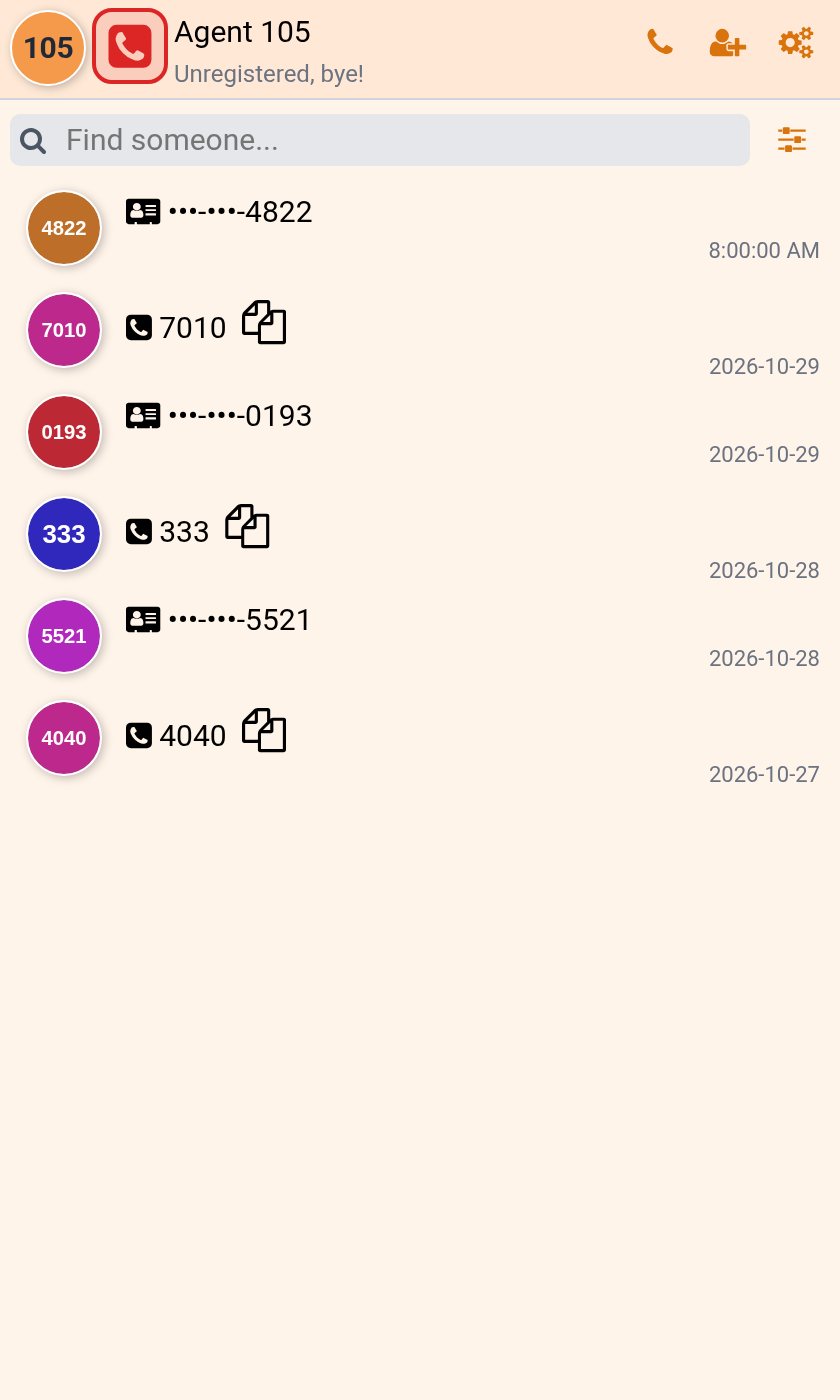
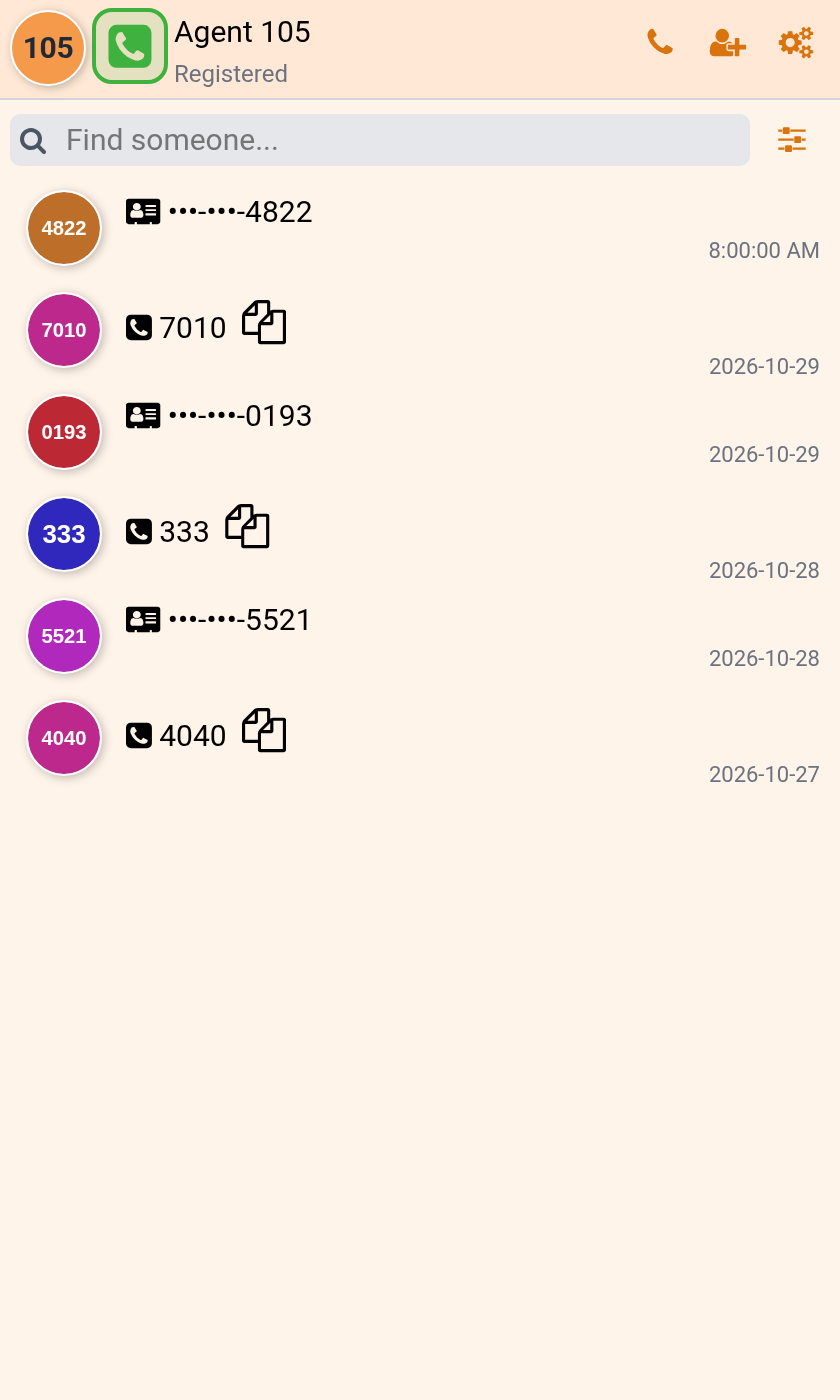
Do NOT use DND (Do Not Disturb). Always use the Register / Unregister button to go on or off the phones. Never dial *76 or *78.
5. Test calls
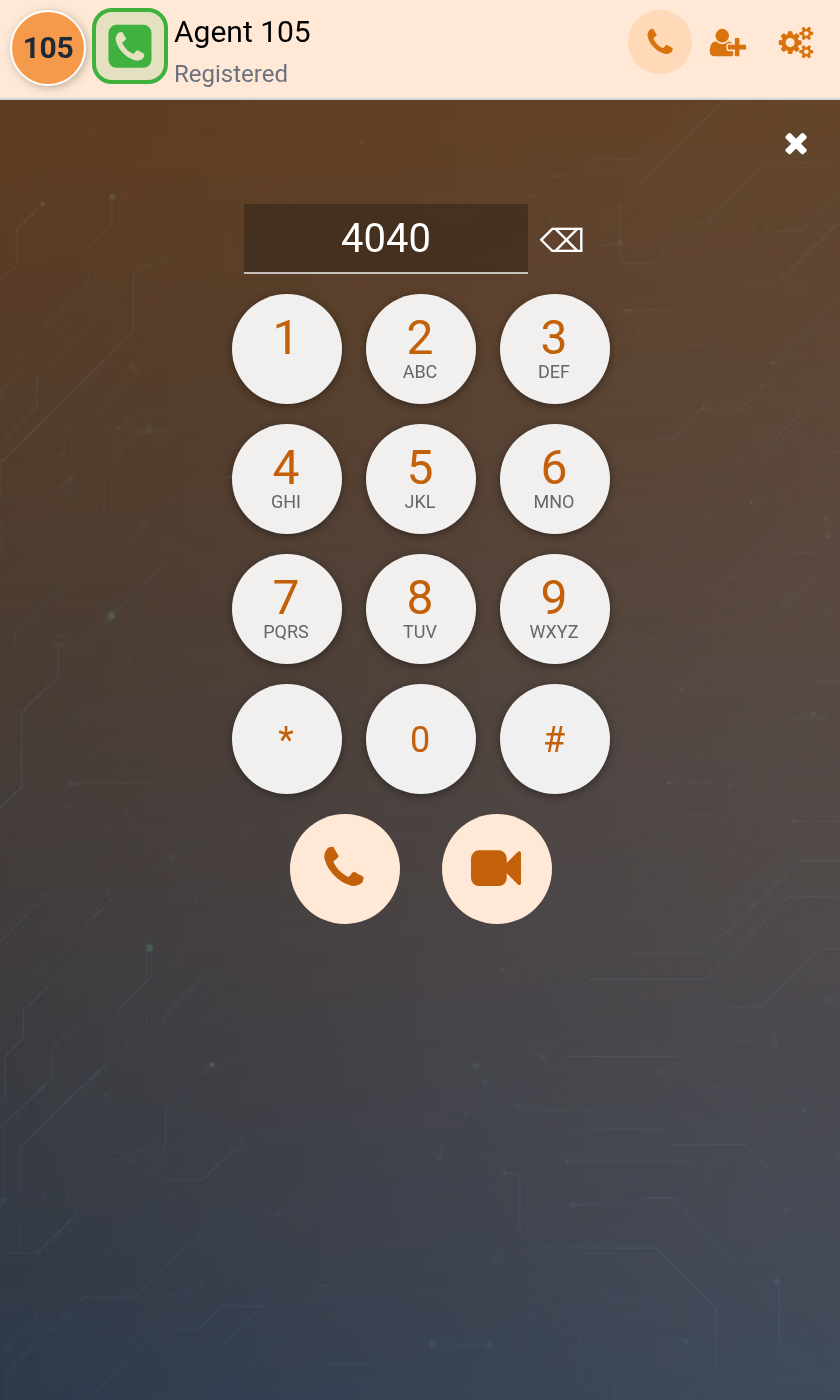
Making a call: make sure you are Registered, open the dial pad, enter the number and press the green call button.
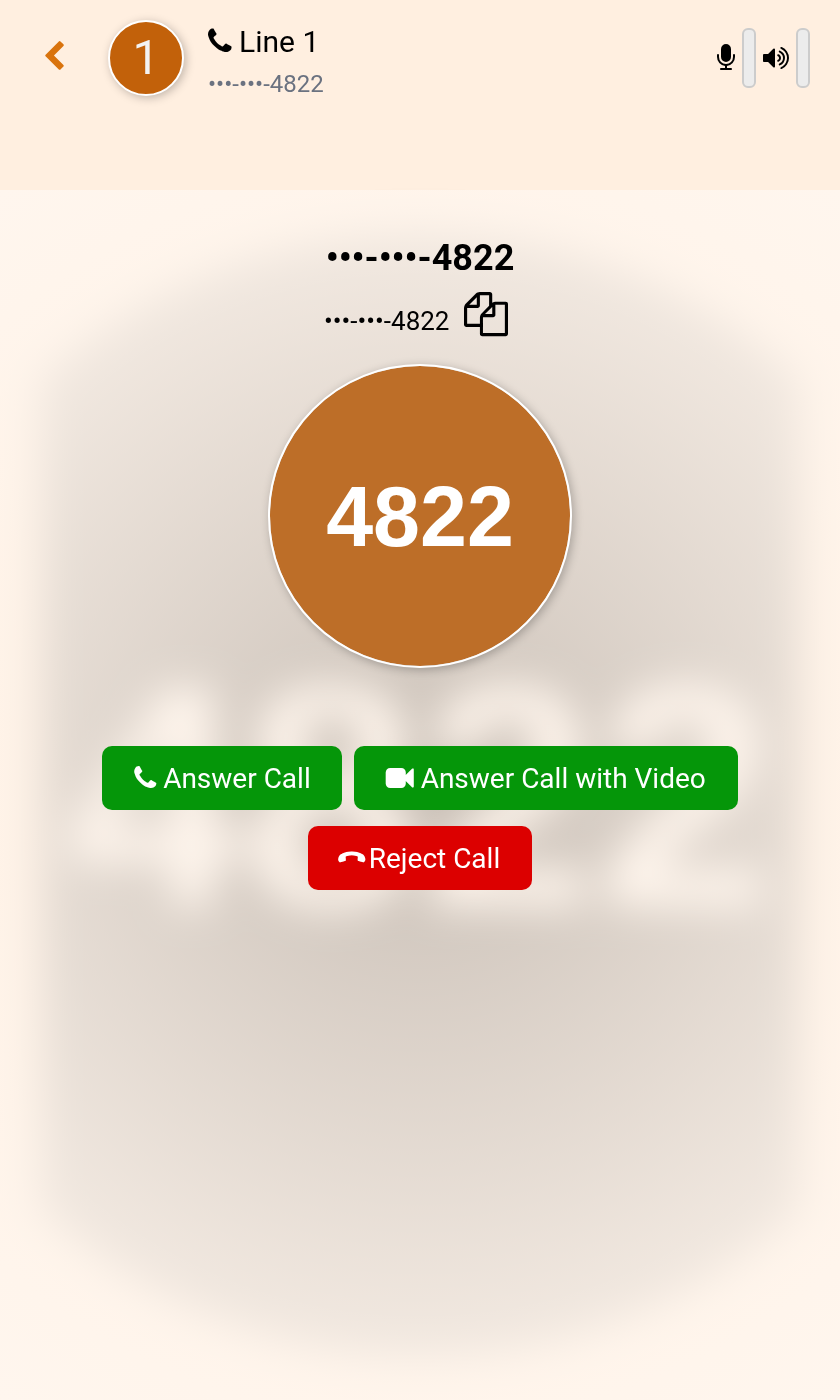
Receiving a call: incoming calls ring and show a popup; click the green button to answer.
Do a test call with your Monica AI contact on day one to confirm two-way audio.
Receiving a call: incoming calls ring and show a popup; click the green button to answer.
Do a test call with your Monica AI contact on day one to confirm two-way audio.
6. Desktop softphone (optional)
The browser webphone is the standard. A desktop softphone is available on request, with separate settings. Download links →
7. Troubleshooting
| Problem | Fix |
|---|---|
| Will not register | Check your IP is whitelisted (has it changed?), check username/password, refresh the page. |
| No / one-way audio | Allow the microphone in Chrome (lock icon → Microphone → Allow); pick the right headset; turn off VPN. |
| Page will not load | Your network may not be whitelisted yet or blocks the webphone port. Try another network and contact us. |
| Choppy audio | Use wired Ethernet; close streaming and downloads. |
| Calls not arriving | Make sure you are Registered and only one webphone tab is open. |
Support: contact your Monica AI representative with your extension, the time of the issue and a screenshot.